Discord, WhatsApp, Viber, and Telegram have one thing in common: none of them have a Record button for voice calls. Whether you're trying to save an important business discussion, capture a podcast interview, or just keep a personal record of audio calls with friends and family, these apps don't make it easy. If you need to record these calls on desktop, you need a third-party tool.
The good news: three methods actually work reliably. One uses a screen recorder approach, another is a Discord-specific bot, and the third captures internal audio directly from your system. Each has different tradeoffs for voice chats, video call recording, and ease of use — we'll break down exactly how to record telegram calls, record discord calls, and capture conversations from WhatsApp and Viber below.
TL;DR
- Free, Discord server channels only: Craig Bot — per-speaker tracks, visible bot
- Free, all four apps: OBS Studio — ~5 min setup, raw audio file
- All four apps, AI transcript, no per-call setup: mono — $50 once
Quick comparison
| Tool | Works with | Bot visible? | Free? |
|---|---|---|---|
| OBS Studio | All four | No | Yes |
| Craig Bot | Discord only | Yes | Free tier |
| Mono | All four | No | $50 one-time |
OBS Studio is a free, open-source screen recorder that doubles as an excellent audio capture tool. Setup takes about five minutes: go to Settings → Audio, point Desktop Audio at your playback device, and you're ready to begin recording. When your call starts, hit Record; when it ends, stop recording. No bot joins, no cloud upload — just a raw audio or video file saved locally to your computer.
The tradeoffs with OBS: you have to remember to manually start and stop each session, which is easy to forget in the middle of a busy day. You also get a plain media file with no transcript, no speaker labels, and no searchable text. For screen recording of video calls where you need to capture both audio and video quality visuals, OBS works well — but for pure audio calls, it's more tool than you need.
Craig Bot handles Discord server voice channels only — it joins your channel as a visible bot and records each participant on a separate audio track. This is particularly useful for podcasts, team meetings, or any scenario where you need to edit speakers individually in post-production. Craig captures internal audio from each participant separately, giving you maximum flexibility in editing.
The limitations: Craig doesn't support WhatsApp, Viber, or Telegram at all. It also doesn't work in Discord private calls or DMs — only server voice channels where you can invite a bot. Everyone in the call sees Craig join, so there's no discreet recording. For recording telegram calls or other messaging apps, you'll need a different solution.
Recording with mono
mono takes a different approach to telegram call recording and capturing conversations from other apps. Instead of joining calls as a bot or requiring per-app configuration, it records audio directly from your computer's sound output — completely invisible to other participants. This method of video recording and audio capture works with Discord, WhatsApp Desktop, Viber, Telegram Desktop, and anything else that plays audio through your system.
What sets mono apart is the AI layer: transcription and speaker identification run locally using Whisper, so your recordings are automatically converted to searchable, editable text. No audio leaves your machine. For anyone who's wondered how to record telegram conversations or wanted a simple way to capture voice chats across multiple platforms, mono handles it without any per-call setup.
Getting started
- Download mono and run the installer
- Open mono — it starts in the recording view by default
Starting a recording
- Click the Record button (◉) in the left sidebar
- Start your call in Discord, WhatsApp, Viber, or Telegram — whatever you're using
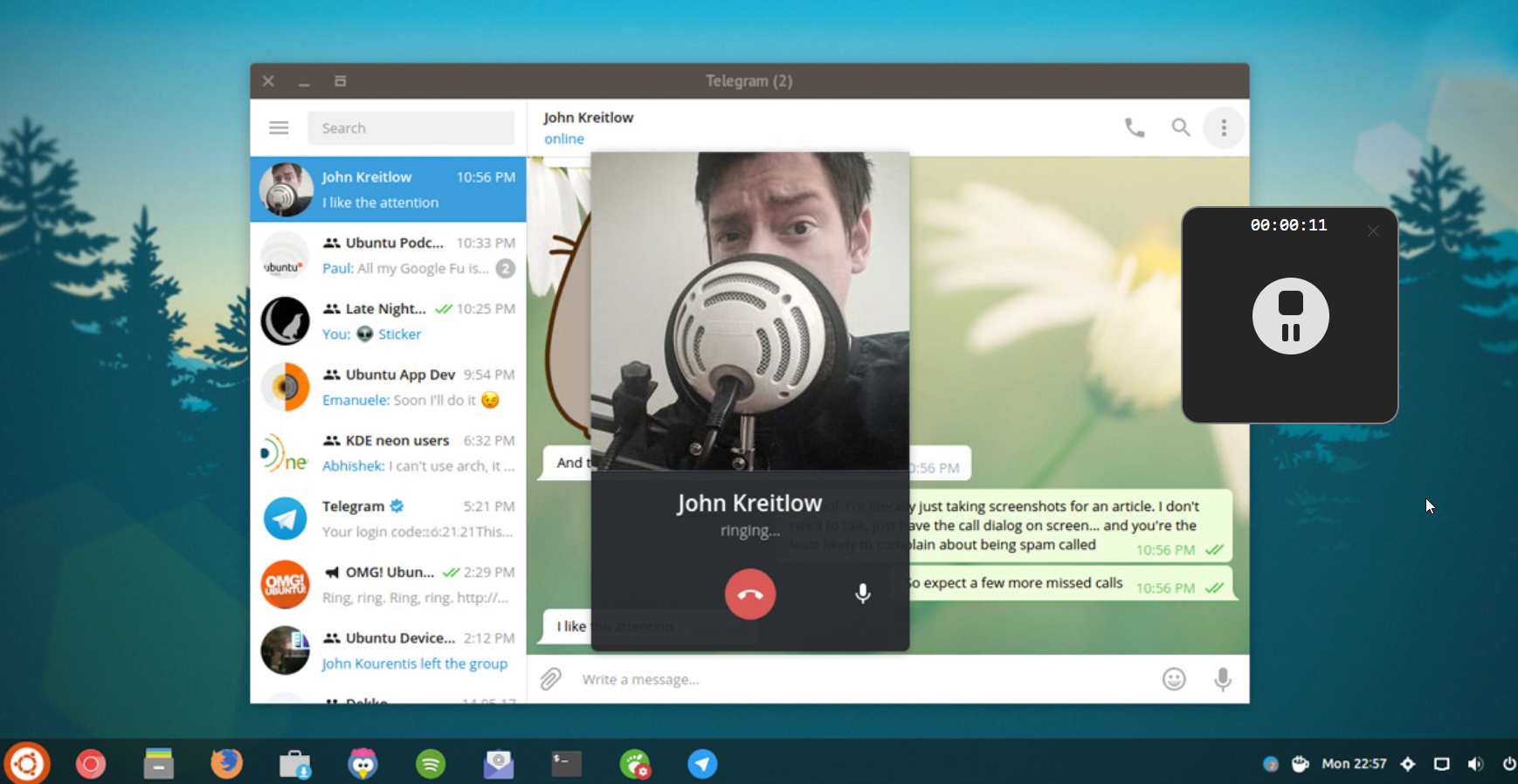
- A circular waveform appears showing audio levels from both your microphone and the call. mono is capturing everything
- You can pause and resume the recording at any point during the call
- When the call ends, click Stop
What you get
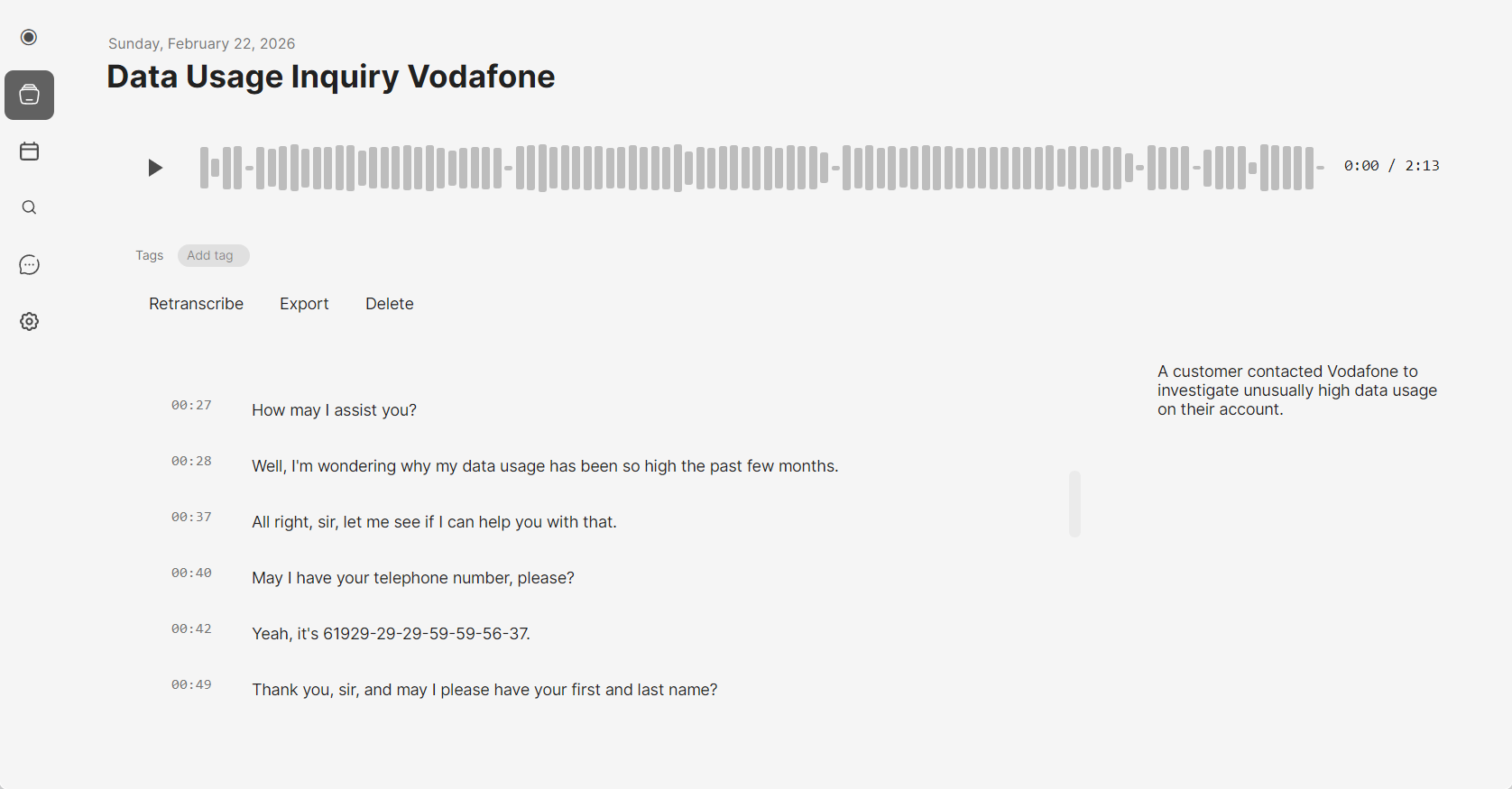
After stopping, mono transcribes the recording locally — no audio is sent anywhere. The transcript view shows:
- Clickable timestamps — jump to any point in the recording by clicking a line
- Speaker labels — your microphone input and the call audio appear as separate speakers
- AI summary — a panel on the right with key points and action items
- Editable segments — click any line to correct the transcript
Library and search
All your recordings are in the Library view. You can search across all of them semantically — search for "budget" to find the moment in any call where pricing came up, even if the word "budget" wasn't said exactly.
Works the same for all four apps
The same steps work for Discord calls, WhatsApp Desktop voice calls, Viber calls, and Telegram Desktop calls. You don't configure anything per app — mono captures whatever is playing through your system audio. One tool, any app.
Tips for better call recordings
Regardless of which tool you choose, a few practices help ensure better video quality and cleaner audio:
- Use headphones — prevents echo and feedback, especially important for longer voice chats
- Close unnecessary apps — reduces system audio interference and ensures the screen recording or audio capture runs smoothly
- Test before important calls — do a quick test recording to verify your setup captures both sides of the conversation
- Check your storage — video recording and long audio calls can use significant disk space
For video call recording specifically, OBS gives you the most control over video quality settings and output format. For pure audio calls where you just need the conversation captured and transcribed, mono is more streamlined.
Which tool should you use?
The right choice depends on what you're recording and what you need from the output:
- Discord server voice channels and want per-speaker tracks? → Craig Bot (free)
- Need it free, don't mind manual start/stop, no transcript needed? → OBS Studio
- Recording WhatsApp, Viber, or Telegram? → OBS or mono
- Want a transcript, AI summary, or record from multiple apps? → mono
- Need full screen recording with video? → OBS Studio
For most users who just want to capture audio calls from messaging apps and have a searchable record, mono offers the most streamlined workflow. You don't need to remember to begin recording before each call or fiddle with audio settings — it just works across Discord, WhatsApp, Viber, and Telegram with one click.
Try mono free
One recording limit, no account needed. $50 to unlock everything — all four apps, local AI, no subscription.