Discord doesn't have built-in recording — and most third-party tools either join as visible bots or upload your audio to cloud servers. If you want invisible recording with local processing, or you're tired of $15-20/month subscriptions for meeting tools, there are better options.
This guide compares three ways to record Discord calls in 2026. We'll cover what each costs per year, where your data goes, and which works best for different needs.
TL;DR
- Best overall: mono — $50 once (vs $96-200/yr subscriptions), local AI transcription, invisible, works with any app
- Best free: OBS Studio — no transcription, requires setup
- Best for podcasts: Craig Bot — per-speaker tracks, visible bot, server channels only
Quick Comparison
| Method | Price | Year 1 Cost | Data | Visible? |
|---|---|---|---|---|
| mono | $50 once | $50 | Stays local | No |
| Granola | From $18/mo | $216 | Granola cloud | No |
| OBS Studio | Free | $0 | Stays local | No |
| Craig Bot | Free tier | $0 | Craig servers | Yes (bot joins) |
Method 1: mono (Recommended)
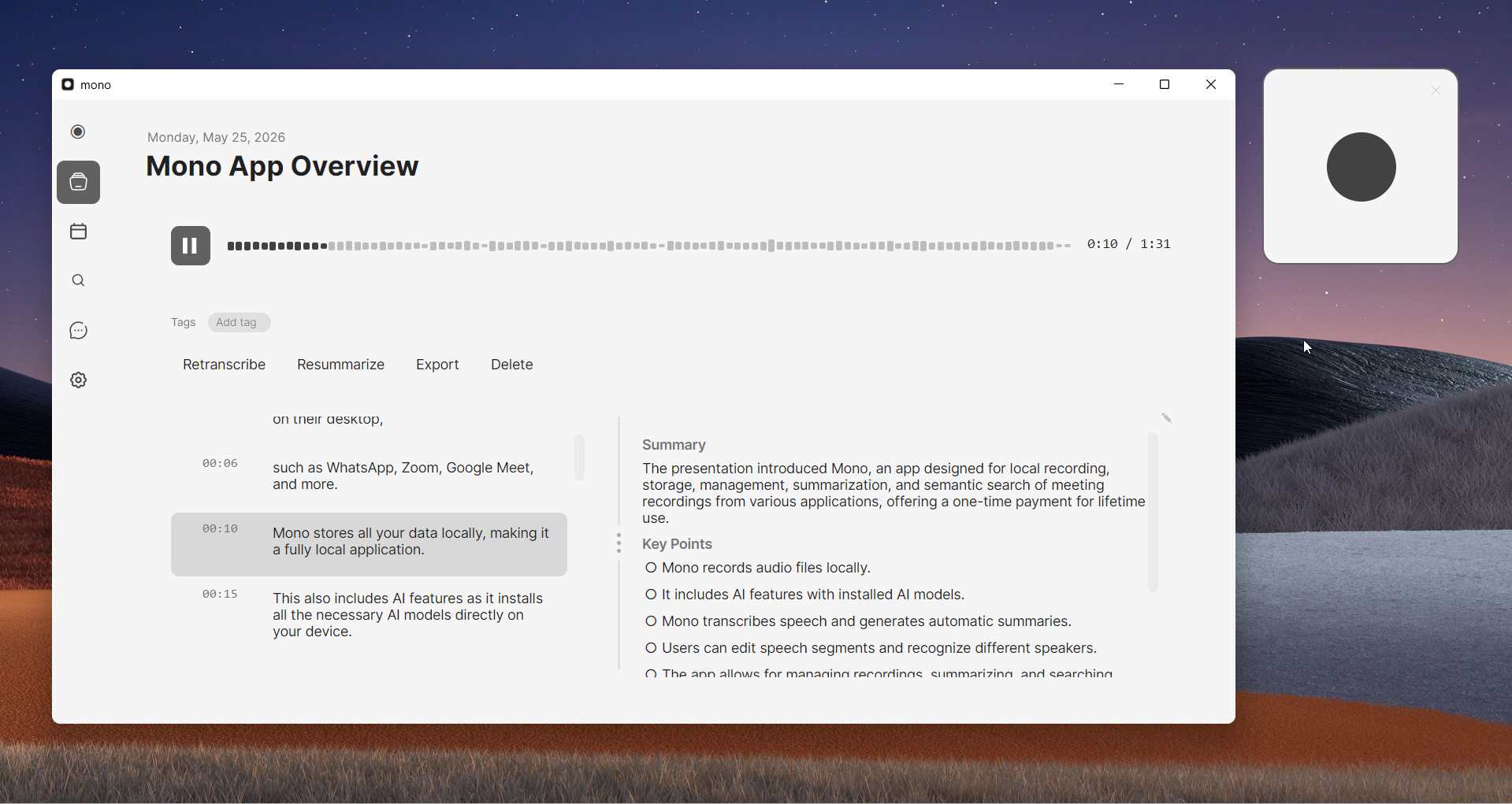
mono captures audio directly from your computer's sound output — no bot joins the voice channel, no notification appears, and your audio never leaves your device. Unlike cloud-based tools, mono processes everything locally. Your Discord recordings stay on your computer, not on third-party servers.
The one-time $50 price includes lifetime updates. Compare that to Otter.ai ($200/yr) or Fireflies ($120-230/yr) — mono pays for itself in 3-6 months.
Beyond Discord, mono works with any app that plays audio: Zoom, Teams, Google Meet, WhatsApp, Telegram, phone calls on desktop — all recorded in one place with automatic transcription.
How to record Discord with mono
- Download mono from mono-ai.uk and install it
- Open mono and click Record
- Join your Discord voice channel or start a call
- When finished, click Stop — transcription starts automatically
- Search recordings by keyword, date, or semantic meaning
After transcription, mono's local AI lets you search by meaning (not just keywords), ask questions about your recordings ("What did we decide about the schedule?"), and auto-generate summaries with action items. All processing happens on your device.
Pros: Audio stays on your device (no cloud upload), works offline, no subscription ($50 once vs $100-200/yr), works with any app, AI chat and summaries, semantic search across all recordings.
Cons: Requires local processing power (works on most modern computers), no real-time transcription during the call, standalone app (no Slack/HubSpot integrations).
Method 2: Granola (Cloud Notetaker)
Granola is a bot-free AI notetaker for Mac and Windows. Like mono, it captures your computer's audio without joining the call, so nothing shows up in Discord and no one is notified. The notes are polished — but it's built for work meetings, not Discord, and the trade-offs are real.
It's a monthly subscription, and your audio is processed in Granola's cloud rather than on your device. Most importantly, Granola keeps only the text — it won't let you export the audio recording itself, so you never get a file of the actual call. With mono you pay $50 once and every file, audio and transcript, stays yours on your machine.
Pros: No bot, bot-free system-audio capture, polished AI notes and summaries, works on Mac and Windows.
Cons: Monthly subscription (from $18/mo), audio processed in the cloud, no audio export — you can't keep the recording, and it's built for business meetings rather than Discord.
Method 3: OBS Studio (Free)
OBS Studio is a free, open-source screen recorder that can capture system audio and your screen. It doesn't join the call as a participant, works with any Discord account, and is completely invisible to others in the call.
OBS is popular among streamers and content creators, but it works just as well for recording Discord audio calls. The main limitation is that it produces raw audio or video files without transcription.
How to record Discord with OBS
- Download OBS Studio from obsproject.com and install it
- Open OBS and go to Settings → Audio
- Set "Desktop Audio" to your playback device (speakers or headphones)
- In the main window, click + under Sources
- Add an "Audio Output Capture" source for audio-only recording
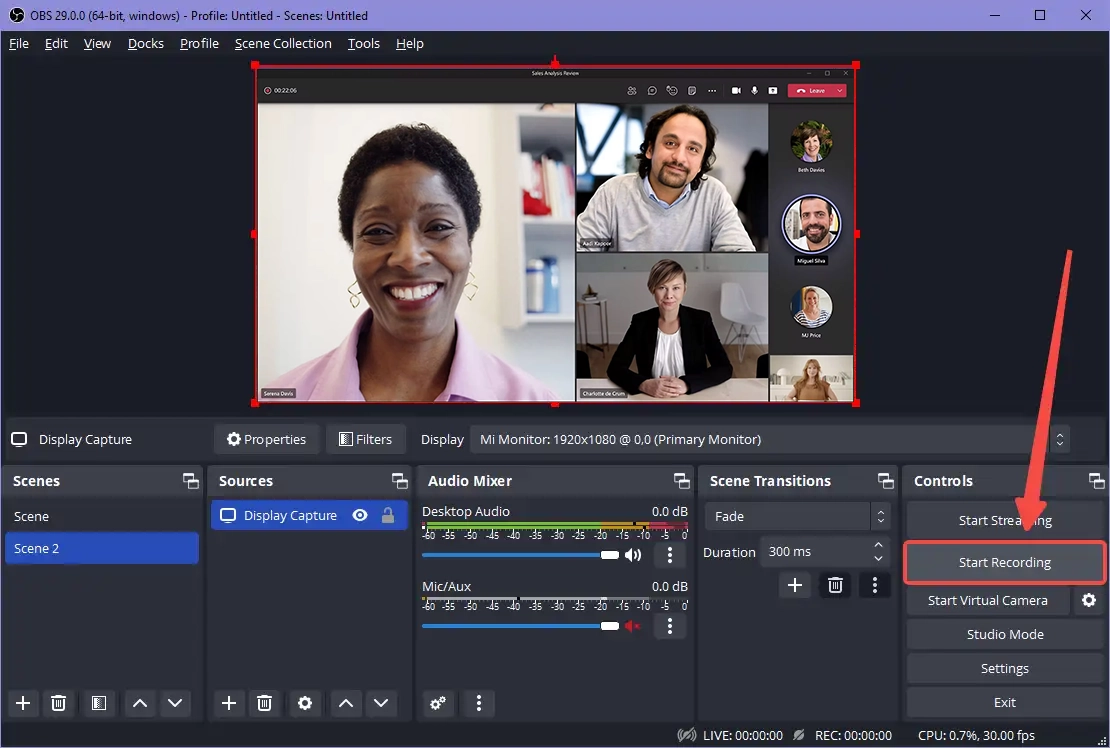
- Optionally add "Display Capture" for video recording
- Click "Start Recording" before joining Discord
- Join and participate in your call
- Click "Stop Recording" when the call ends
- Find your recording in the output folder (usually Videos)
Pros: Completely free and open source, no visible bot, works with any Discord call, can record video calls with screen capture.
Cons: Requires initial setup, must manually start and stop recording for each call, no transcription — produces only raw audio/video files.
Method 4: Craig Bot (Server Channels Only)
Craig Bot is a Discord bot specifically designed for recording voice channels. Unlike the previous methods, Craig joins your server's voice channel as a visible participant. Everyone in the channel can see Craig is there, making it transparent that recording is happening.
Craig's unique feature is multi-track recording: it captures each participant on a separate audio track. This is invaluable for podcast production, as you can adjust individual volume levels, remove background noise from specific speakers, or edit out one person's audio without affecting others.
How to record Discord with Craig Bot
- Visit craig.chat and invite Craig Bot to your server
- Grant the necessary permissions for Craig to join voice channels
- Join the voice channel you want to record
- Type
/joinin any text channel on your server - Craig joins the voice channel and begins recording automatically
- Type
/stopwhen you're finished - Craig sends you a link to download the multi-track recording
Craig provides recordings in multiple formats, including individual tracks per speaker and a combined mix. The free tier has some limitations on recording length and storage, but works well for most use cases.
Pros: Free tier available, multi-track recording with separate files per speaker, transparent recording (everyone knows), excellent for podcasts and interviews.
Cons: Only works in server voice channels — not private DMs or calls, visible bot that everyone can see, no transcription, requires admin permissions to add bot to server.
Which Method Should You Use?
Private calls or DMs + want transcription? mono ($50 once) keeps everything local with AI features. Craig Bot doesn't work in DMs.
Server voice channels + need per-speaker tracks? Craig Bot is ideal for podcast editing with separate audio per participant.
Free recording without transcription? OBS Studio is reliable but requires setup and produces raw files.
Video recording? OBS Studio with screen capture. mono and Craig focus on audio.
Want AI search and summaries? mono lets you ask questions about your recordings and auto-generates summaries with action items.