Viber Desktop has no built-in call recording — and the tools that fill the gap split into two camps: free screen recorders that hand you a raw file with no transcript, and cloud apps that upload your conversation to someone else's servers and bill you monthly. If you want a transcript without the subscription, or you want your audio to stay on your own computer, there are better options.
This guide compares four ways to record Viber voice and video calls on desktop in 2026 — what each costs, where your audio ends up, and which one fits your needs.
TL;DR
- Best overall: mono — $50 once (vs $96–216/yr subscriptions), local AI transcription, invisible, works with any app
- Best for AI notes: Granola — cloud summaries and transcript, subscription
- Cloud alternative: Krisp — transcription plus noise cancellation, subscription
- Best free: OBS Studio — no transcription, requires setup
Quick Comparison
| Method | Price | Year 1 Cost | Data | Transcription |
|---|---|---|---|---|
| mono | $50 once | $50 | Stays local | Yes (local AI) |
| Krisp | From $8/mo | ~$96 | Krisp cloud | Yes (cloud) |
| Granola | From $18/mo | $216 | Granola cloud | Yes (cloud) |
| OBS Studio | Free | $0 | Stays local | No |
Method 1: mono (Recommended)
mono captures audio straight from your computer's sound output — it records both sides of your Viber call without joining it, so there's no notification and nothing for the other person to see. Everything runs on your device: the transcription is local and your audio never leaves your computer.
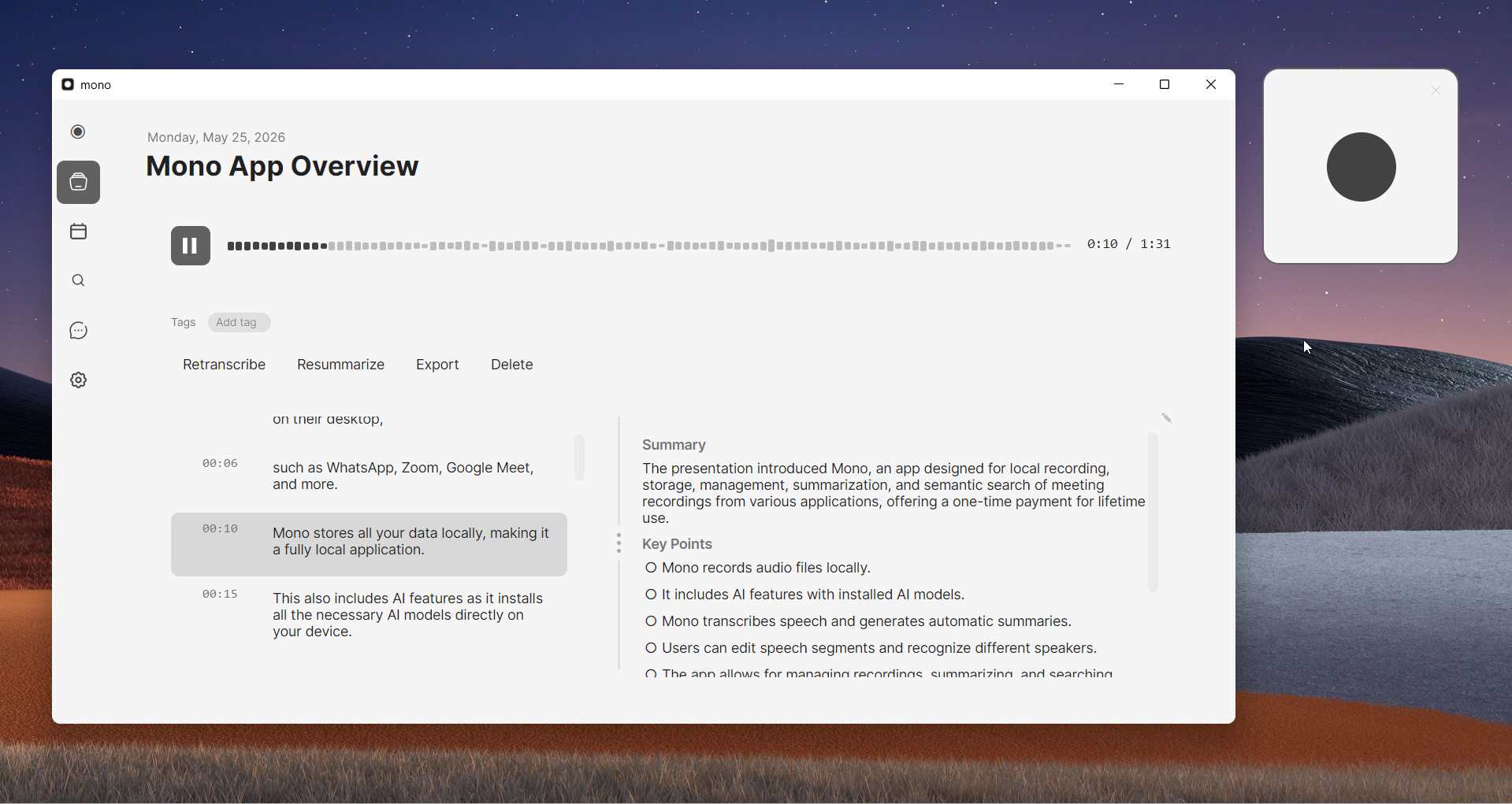
The one-time $50 includes lifetime updates. Cloud recorders like Otter.ai ($200/yr) or Fireflies ($120–230/yr) keep charging every year — mono pays for itself within months and then costs nothing.
And it isn't just Viber: mono records any app that plays audio — Zoom, Teams, Google Meet, WhatsApp, Telegram, Discord, even phone calls bridged to your desktop — all in one searchable library.
How to record Viber calls with mono
- Download mono from mono-ai.uk and install it
- Open mono and click Record
- Open Viber Desktop and start your voice or video call
- Talk normally — mono captures both sides
- Click Stop when the call ends
- Wait a moment for the local transcription to finish, then review it with speaker labels and timestamps
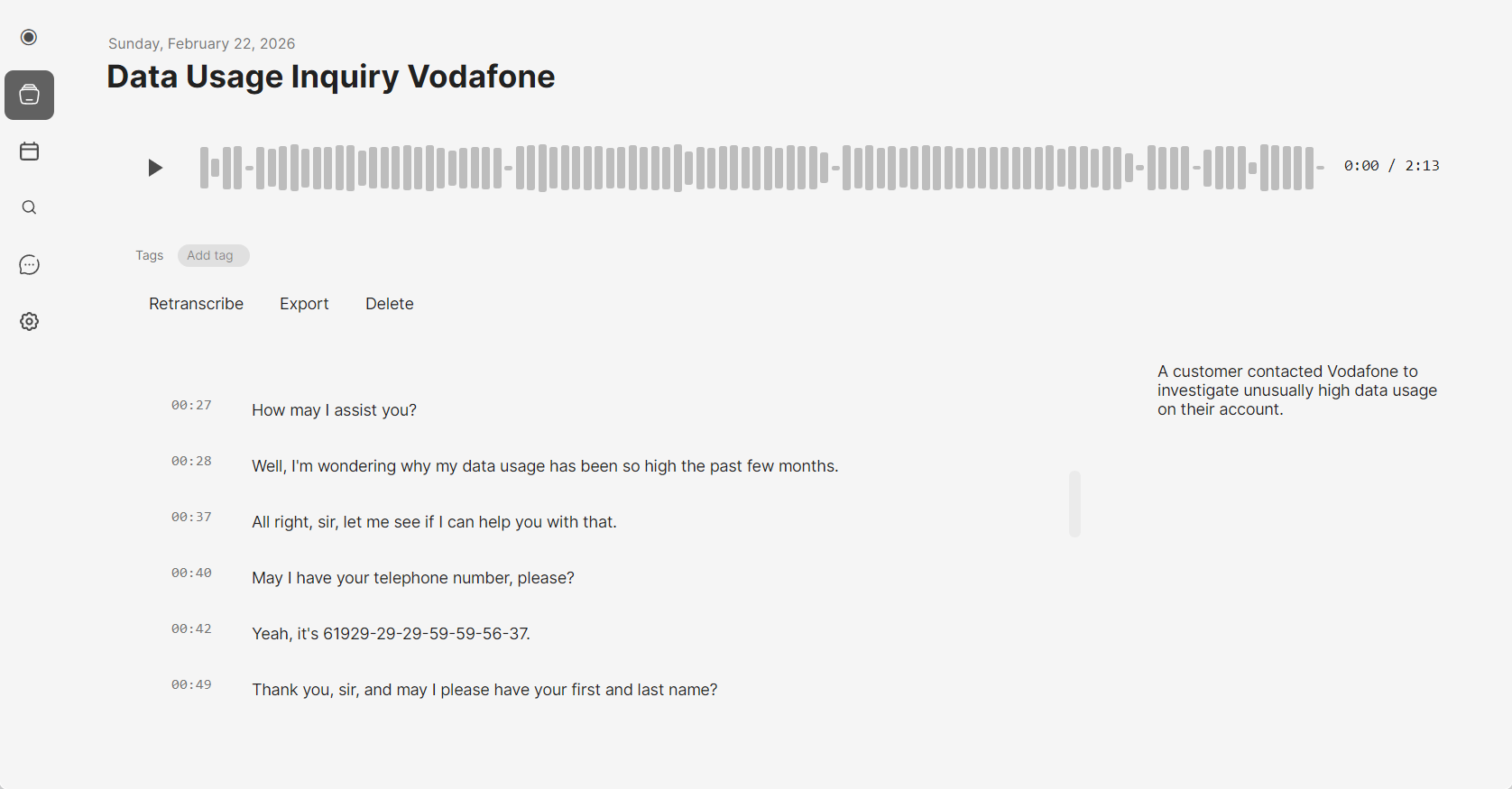
Transcripts are searchable across your whole archive, so you can find a specific conversation or topic later by keyword.
Pros: Works with voice and video calls, invisible to the other person, automatic local transcription with speaker labels, searchable library, audio never leaves your device, one-time $50 with no subscription.
Cons: Paid after the first recording (one free recording to try), desktop only (Windows and macOS).
Method 2: Krisp
Krisp is a desktop app best known for AI noise cancellation, but it also records and transcribes calls from any app — including Viber Desktop — by capturing your system audio. Like mono, nothing joins the call, so the other person sees no bot and no notification.
The trade-off is where it happens: recording and transcription are processed in Krisp's cloud, and unlimited transcription needs a paid plan. The free tier is mainly noise cancellation with limited transcription minutes.
How to record Viber calls with Krisp
- Download Krisp from krisp.ai and create an account
- In Krisp, turn on Call Recording and Transcription
- Set Krisp as your microphone and speaker device
- Make your Viber call as usual
- Open the Krisp app or dashboard afterward to read the transcript and AI notes
Pros: Works with any app, automatic transcription and AI notes, excellent noise cancellation, invisible to the other person.
Cons: Subscription for unlimited transcription, audio and transcripts are processed in the cloud, account required.
Method 3: Granola
Granola is an AI notetaker that records meetings and turns them into clean summaries. It runs on your computer and captures system audio, so it can pick up a Viber Desktop call without joining as a bot. It's polished and popular for sales and team calls.
Like the other cloud tools, your audio is processed on Granola's servers and full use needs a subscription (from $18/mo). It's built around AI meeting notes rather than keeping raw recordings, so it's a better fit if you mainly want summaries.
How to record Viber calls with Granola
- Download Granola from granola.ai and sign in
- Grant microphone and system-audio permission
- Start a new note in Granola, then begin your Viber call
- Talk normally — Granola transcribes in the background
- End the note to get an AI summary and the transcript
Pros: Clean AI summaries and notes, automatic transcription, no bot joins, good for recurring meetings.
Cons: Subscription from $18/mo, processed in Granola's cloud, optimized for notes rather than full recordings, account required.
Method 4: OBS Studio (Free)
OBS Studio is free, open-source software built for streamers. It can capture your system audio — and optionally your screen — which makes it a reliable free way to record Viber calls once it's set up.
Like mono, OBS records from your system output, so the other person won't know. But there's no transcription: you get a raw audio or video file to handle yourself.
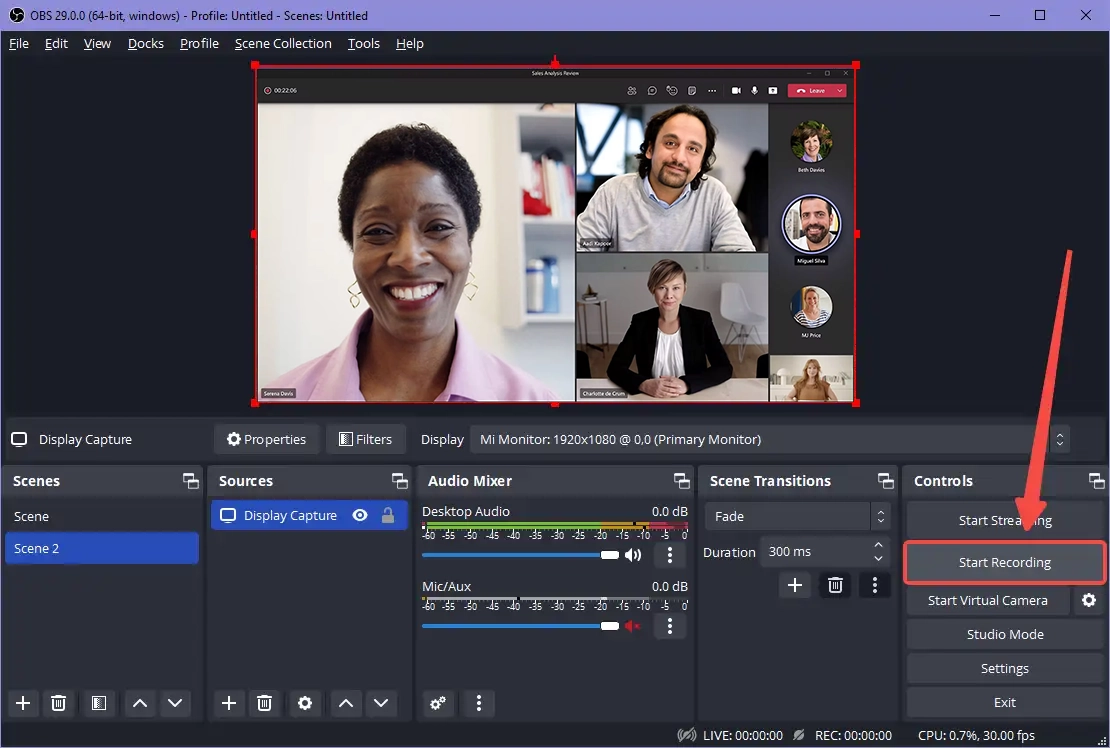
How to record Viber calls with OBS
- Download OBS Studio from obsproject.com and install it
- Open OBS and go to Settings → Audio
- Set "Desktop Audio" to your playback device (speakers or headphones)
- In the main window, click + under Sources
- Add an "Audio Output Capture" source to capture internal audio
- Click "Start Recording" before making your Viber call
- Make your call in Viber Desktop
- Click "Stop Recording" when the call ends
- Find your recording in the output folder (usually Videos)
Pros: Completely free and open source, invisible to the other person, can also record video via screen capture, highly configurable.
Cons: Requires initial setup, you start and stop recording yourself for each call, no transcription — produces raw files only.
Recording Viber Video Calls
All four methods handle video calls, but they capture different things.
Audio with transcription (mono, Krisp, Granola): saves the conversation as searchable text — usually all you need, with small files. mono keeps this fully on your device.
Full video (OBS): captures the call window too, but files are much larger and there's no transcript. For most people, audio plus a transcript is the more practical choice.
Can You Record Viber Calls on Your Phone?
Viber has no recording feature on Android or iPhone either, and mobile makes it harder. iOS blocks apps from capturing call audio, so the built-in screen recorder won't pick up the other person on a Viber call. Android screen recorders can sometimes capture call audio, but it's inconsistent from phone to phone.
The most reliable route is to take the call on Viber Desktop and record it with one of the methods above. You get cleaner audio and, with mono, an automatic transcript that stays on your computer.
Which Method Should You Use?
If you want a transcript without a subscription: mono records and transcribes locally for $50 once, with speaker labels and search.
If you mainly want AI meeting notes: Granola produces polished summaries, and Krisp adds noise cancellation — both are cloud-based and subscription.
If you want free: OBS Studio is reliable but needs setup and gives you a raw file with no transcript.
For privacy-sensitive calls (clients, interviews, family abroad): mono keeps everything on your device — nothing is uploaded to anyone's servers.
Frequently Asked Questions
Does Viber have built-in call recording?
No. Viber Desktop has no recording feature for voice or video calls. You need a separate tool that captures your system audio.
Can you record Viber calls on PC?
Yes. mono, Krisp, Granola and OBS Studio can all record Viber Desktop calls by capturing system audio. mono, Krisp and Granola also transcribe them automatically.
What's the best app to record Viber calls with transcription?
mono is the best option if you want a transcript without a subscription — it records and transcribes locally for $50 once. Krisp and Granola are the main cloud alternatives.
Will the other person know I'm recording?
No. mono, Krisp, Granola and OBS capture your computer's audio instead of joining the call, so no bot or notification appears. Recording-consent laws still vary by region, so check the rules where you are.